
How to Create and link a Profile
A Profile page serves as the dedicated content space for your staff, leadership, and board members. Each profile allows you to showcase more details, including professional titles, direct contact information, and bio photos. Because Profiles function as dynamic content blocks, they are highly versatile; you only need to create a profile once, and you can seamlessly feature it in multiple locations throughout your website.
Step 1: Create a New Profile
To add a new staff or board member, log in to your dashboard and navigate the top menu bar:
- Hover over Content in the top-left corner.
- In the dropdown, hover over Add Content.
- Move your cursor to the right and select Profile.
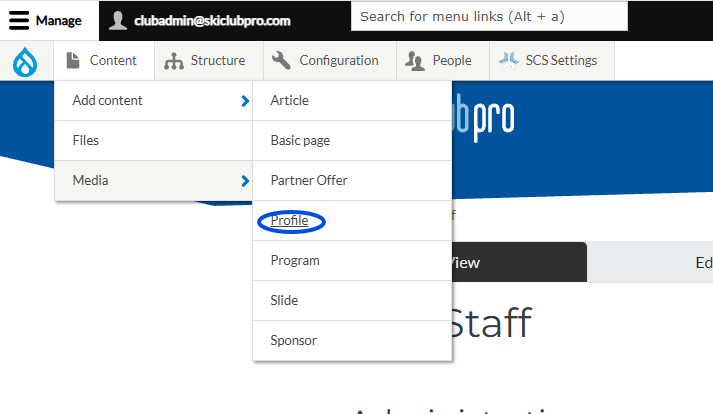
Step 2: Fill in Profile Information
On the edit screen, enter the team member's specific details:
- Personal Details: Enter their First Name, Last Name, and optional Email and Phone number.
- Profile Title: Input their formal role or designation (e.g., "Head Coach" or "Executive Director").
- Profile Picture: Click Choose file under the Profile Picture section to upload a headshot (supported formats: .png, .jpg, .jpeg, wepb).
- Body: Use the text editor to add a brief bio, credentials, or background information.
Step 3: Link Your Profile Dynamically (Crucial Step)
To ensure this profile shows up on the correct pages of your website, scroll down to the Classification & Related Pages section. This is what handles the dynamic placement across your site.
- Profile Category: If this person belongs to a specific group or team (such as a "Head Coaches" or "U16 Staff"), click into the search field, type the category name, and select it from the auto-populating dropdown list. This pushes their profile directly to that team's page.
- Related Page(s): To display this profile on your central directory, click into the search field, type (e.g., "Club Staff") (or the name of your general staff landing page), and select it from the dropdown.
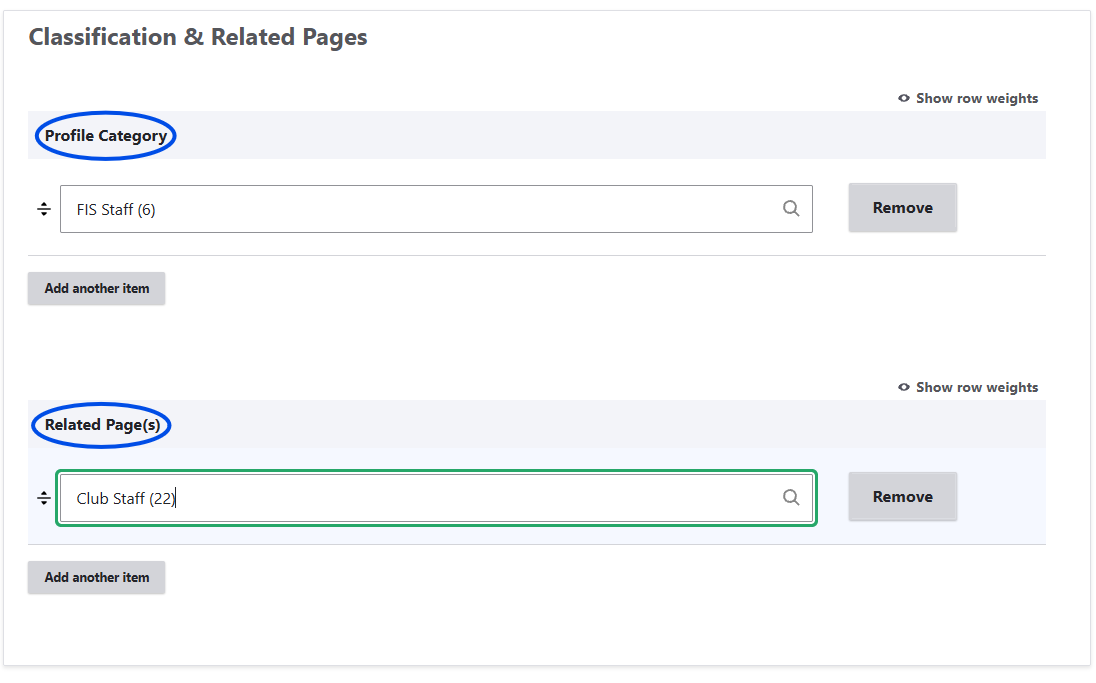
Step 4: Save and Publish
Once all information is entered and you have linked the profile to its appropriate categories or pages, click the blue Save button at the bottom of the screen.
The profile will automatically publish and instantly populate on every page and category roster you selected.