
Section Slide show
A Section Slideshow is a dynamic layout tool used to cycle through visual imagery on a basic page. It is best used for showcasing content such as:
- Customer or client testimonials
- Photo galleries
- Advertisements
- Upcoming club events or promotions
How to Add a Section Slideshow
1. Locate Page Layout Settings
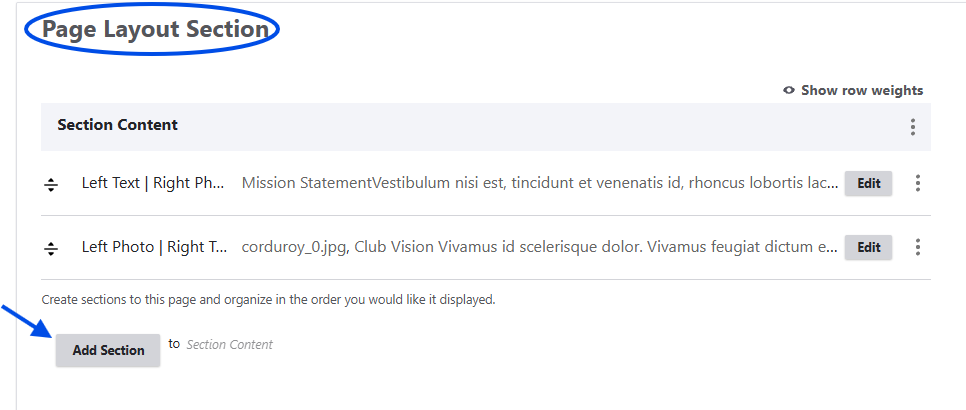
Navigate to the editing button of your basic page. Scroll down until you find the Page Layout Section.
2. Add the Section
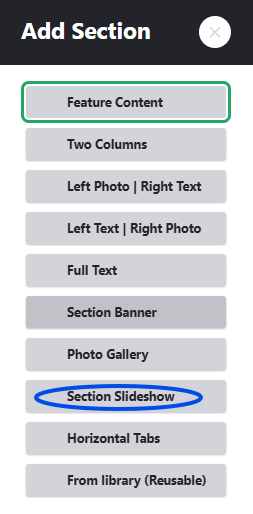
Click on the Add Section button. A pop-up menu will appear featuring a variety of content layout options.
3. Select Section Slideshow
From the pop-up menu, select Section Slideshow. This will insert a new slideshow block into your page layout section.
Configuring Your Slideshow
Once you have added the Section Slideshow block, you can customize it with text.
Text Fields
At the top of the block, you will see a text editing area labeled Text Area - Full.
- Use the text editor to insert any headers, introductory text, or body descriptions you want to accompany your slideshow.
Adding Media
Directly below the text editor, you will find the Slideshow media management tool.
- Click the Add media button to select images from your media library.
- Note: Each Section Slideshow has a maximum capacity of 12 media items.
Saving Your Progress
Once you are satisfied with your added text and uploaded media items, scroll to the bottom of the editing interface and click Save to publish your changes.